The cursor that never sleeps
The moment something shifts
Imagine you open your Mac.
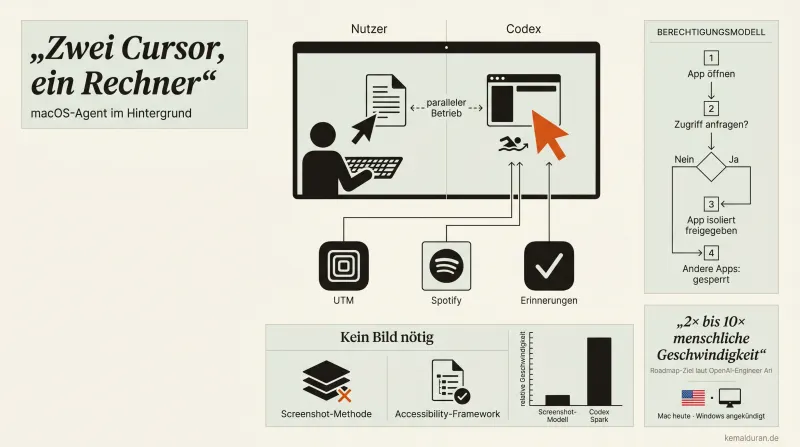
Two tasks are running in parallel. A VM is being configured. At the same time, someone picks music on Spotify and adds an appointment to Reminders.
That someone isn't you.
You keep working. Your cursor sits still on your screen. A second cursor, animated, recognizable, deliberately different, does the clicking. Five apps. Several hours of work. In the background.
This isn't an automation script. It isn't a macro recorder.
This is Computer Use.
What hardly anyone understands so far
Most implementations of AI-driven GUI control work on the same principle: take a screenshot, analyze it, click, wait, next screenshot.
The problem here isn't the idea.
The problem is the architecture.
Screenshots are images. Images are slow to process. Images don't capture what has scrolled off-screen. And images need multimodal models that are too heavy for pure click precision.
macOS has shipped something far better for years: the Accessibility framework. Structured, text-based UI data. Every element, its type, its position, its state, as structured information, not as a cloud of pixels.
If you tap into this framework, you no longer need a screenshot loop.
Outcome: a fast, non-multimodal model can operate the user interface faster than a human.
Not slightly faster.
Much faster.
The decision that changes everything
There's one design decision in this architecture that looks small at first glance.
No shared desktop.
Earlier implementations took over the entire screen, which means: either you work, or the AI works. Not both at the same time.
The fix: a separate cursor. Fully independent. Visible, but not in the way. The user operates their Mac. The second cursor operates whatever it has been allowed to.
And that's exactly where the second decisive point sits: the permission model.
App by app. The first time it accesses an application, the system asks explicitly. Anything that hasn't been approved stays fully isolated. No desktop transfer. No file access in the background. Only what you consciously open.
Security through granularity, not through bans.
Read this wrong and you lose time
The common mistake when sizing up tools like this: thinking in single tasks.
"I could have it set up a VM."
That's true. But that's the small version of the insight.
The bigger one: every task made up of several apps, several manual steps and no real thinking now belongs in a different category. No longer "I have to do that at some point". Now it's "I can delegate that".
Data upkeep in spreadsheets. Software configuration. Form workflows. Setup processes with ten clicks that repeat every two months.
That's the target group of this technology. Not the one-off case. The structural redundancy in every workday.
What this means for your own builds
If you build products yourself or design automations, keep one question in mind:
Why screenshots when accessibility data exists?
The architecture pattern, text-based UI metadata instead of image processing, carries over. To your own agent builds, to tool integrations, to any environment that exposes structured interface information.
Faster models. More reliable recognition. Fewer errors in unexpected UI states.
The technology isn't perfect yet. Open questions remain: how does the permission model behave in the browser when several tabs are open? What happens when the UI is in an unexpected state? When does the system actively ask back instead of carrying on by itself?
These questions are real. And they're the reason the most sensible first step isn't the most complex one.
Where you start
Not with the most ambitious use case.
With the most annoying one.
The task you've been pushing ahead of you for months because it needs five apps, takes three hours and never once calls for real thinking.
The one you keep blocking time for, and that still stays in the backlog.
That's where you start.
Not because you want to test the tool's limits. Because you want to feel what happens when a cursor does the work while you're already on to the next thing.
The goal isn't automation for the sake of automation.
The goal is: more of you in the work only you can do.
The rest?
Runs in the background.
FAQ
What exactly is Computer Use in Codex?
Computer Use is a feature where an AI operates your Mac through its own separate cursor. It clicks, types and moves through apps while you keep working in parallel with your own cursor. Control doesn't run through screenshots. It runs through the macOS Accessibility framework.
How is this different from a regular automation script or macro recorder?
A macro recorder plays back rigid, prerecorded click sequences and breaks at the smallest UI change. Computer Use reads the user interface live through structured accessibility data and adjusts its behavior on the fly. That lets it react to unexpected windows or changed layouts, which a script can't do.
Why is using accessibility data faster than screenshots?
Screenshots are images that a multimodal model has to interpret before a single click can happen. The Accessibility framework instead delivers every UI element as structured text with type, position and state. A fast, non-multimodal model can process this text data directly and so operate the interface faster than a human.
Can the AI access apps I haven't approved?
No. The permission model works app by app, which means the system explicitly asks for your consent the first time it accesses an application. Apps you don't approve stay fully isolated. There is no desktop transfer and no file access in the background. The security comes from this granularity instead of blanket bans.
Which everyday tasks is Computer Use worth it for?
Recurring tasks that need several apps and many manual clicks, but no real thinking, benefit the most. Examples are data upkeep in spreadsheets, software configuration, form workflows or setup processes with numerous clicks that repeat every few months. This structural redundancy in the workday is the real target group of the technology.